
How to create a Svelte form (with validation)
Build a Svelte (SvelteKit) contact form with no backend. Copy-paste examples for a plain form, a JavaScript submission with success and error states, and a SvelteKit form action with server-side Zod validation.
In this guide we’ll look at how to add a Svelte contact form that collects submissions and emails you on every new one — without writing or hosting any backend code. We’ll use SvelteKit, start with a plain form, enhance it to submit in the background and show an inline confirmation, then cover SvelteKit form actions with server-side validation.
Create a new Svelte app
We’re going to start from scratch and create a new Svelte app. If you already have one you can skip this step and go to the next one.
Go ahead and run the following in your terminal
npm create svelte@latest formbackend-svelte
We picked the skeleton app, which will just give us a barebones project structure. We’re using formbackend-svelte as our directory name but you can of course use whatever!
Next go in to the directory you just created and run npm install like so
cd formbackend-svelte
npm install
We can now go ahead and start the dev server by running
shell
npm run dev -- --open
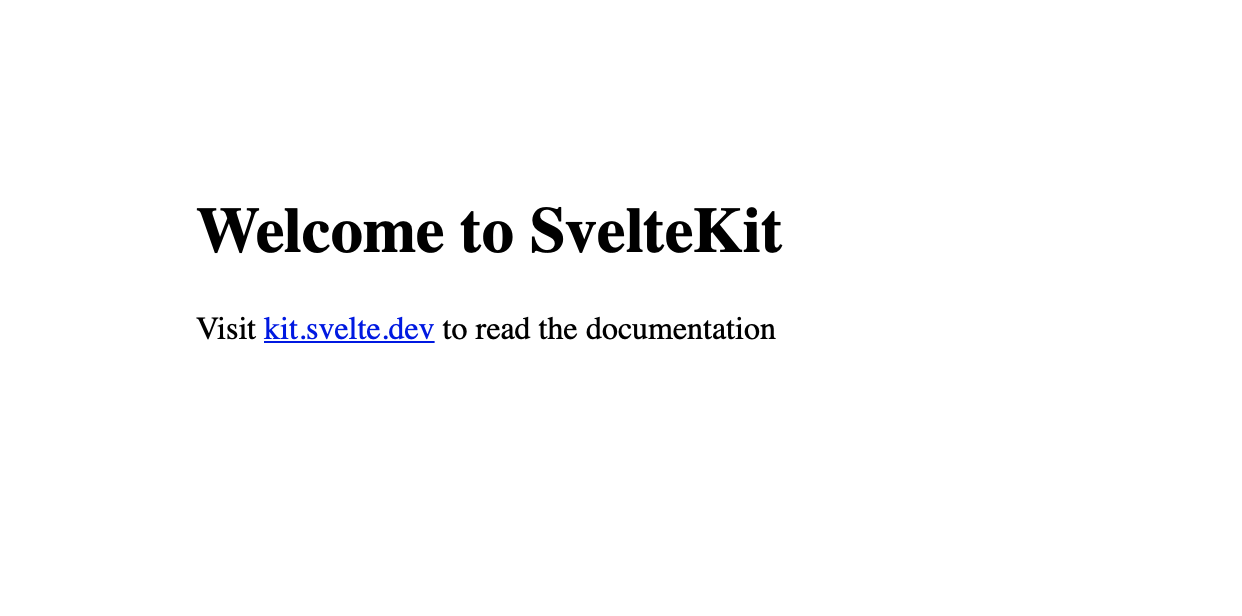
and you should see this when visiting http://localhost:5173:
Create a contact form in FormBackend
Log in to your FormBackend account and visit the forms index page. Go ahead and create a new form and give it a name you can remember it by.
After your form has been created, you’ll see the “Submissions” page which is where new submissions will appear. If you navigate to the “Set up” page you can see the unique URL for your form. We’ll copy that!
Create a new contact us page in the Svelte app
Svelte’s routing system is based on the file system, so any directory you create inside src/routes will be the relative path of your site. So src/routes/contact will be accessible on http://localhost:5173/contact.
Go ahead and create a new directory inside of src/routes named contact and inside that we’ll create a file named +page.svelte with the following content (full path src/routes/contact/+page.svelte):
<h1>Contact us</h1>

<form action="https://www.formbackend.com/f/b1a2be3a2e0521ff" method="POST">
  <div>
    <label for="name">Name</label>
    <input type="text" id="name" name="name" required>
  </div>

  <div>
    <label for="email">Email</label>
    <input type="email" id="email" name="email" required>
  </div>

  <div>
    <label for="message">Message</label>
    <textarea id="message" name="message" required></textarea>
  </div>

  <button type="submit">Submit</button>
</form>
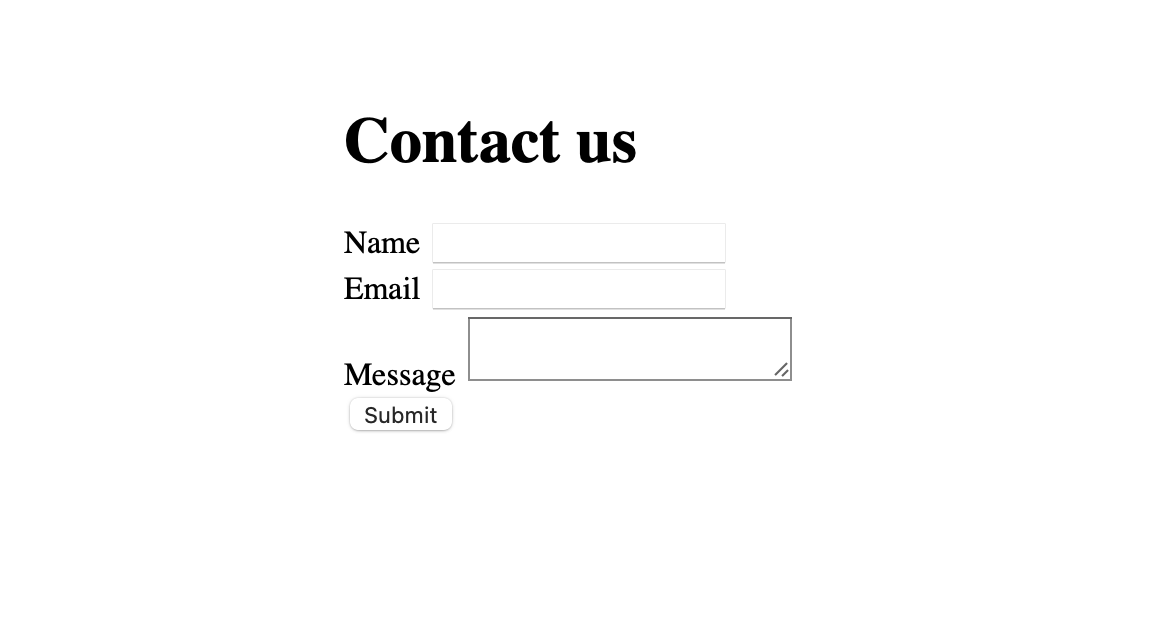
You’ll now have a simple unstyled form that looks like this
We can make the form look a little better by providing our own CSS. Let’s add the following at the bottom of src/routes/contact/+page.svelte
<style>
  h1 {
    font-family: Arial, Helvetica, sans-serif;
    font-size: 2rem;
    font-weight: 600;
    margin-bottom: 1rem;
  }
  .fieldset + .fieldset,
  form + form {
    margin-top: 8px;
  }

  label {
    font-family: Arial, Helvetica, sans-serif;
    color: #334155;
    display: block;
    font-size: .8rem;
    font-weight: bold;
    text-transform: uppercase;
  }

  input,
  textarea,
  select {
    border: 1px solid #ddd;
    color: #475569;
    font-size: 1rem;
    padding: 5px;
    border-radius: 4px;
  }

  button[type="submit"] {
    background: purple;
    background: #14b8a6;
    border: none;
    box-shadow: none;
    color: white;
    border-radius: 2px;
    font-size: .8rem;
    text-transform: uppercase;
    font-weight: 500;
    padding: 8px 12px;
    margin-top: 16px;
  }
</style>
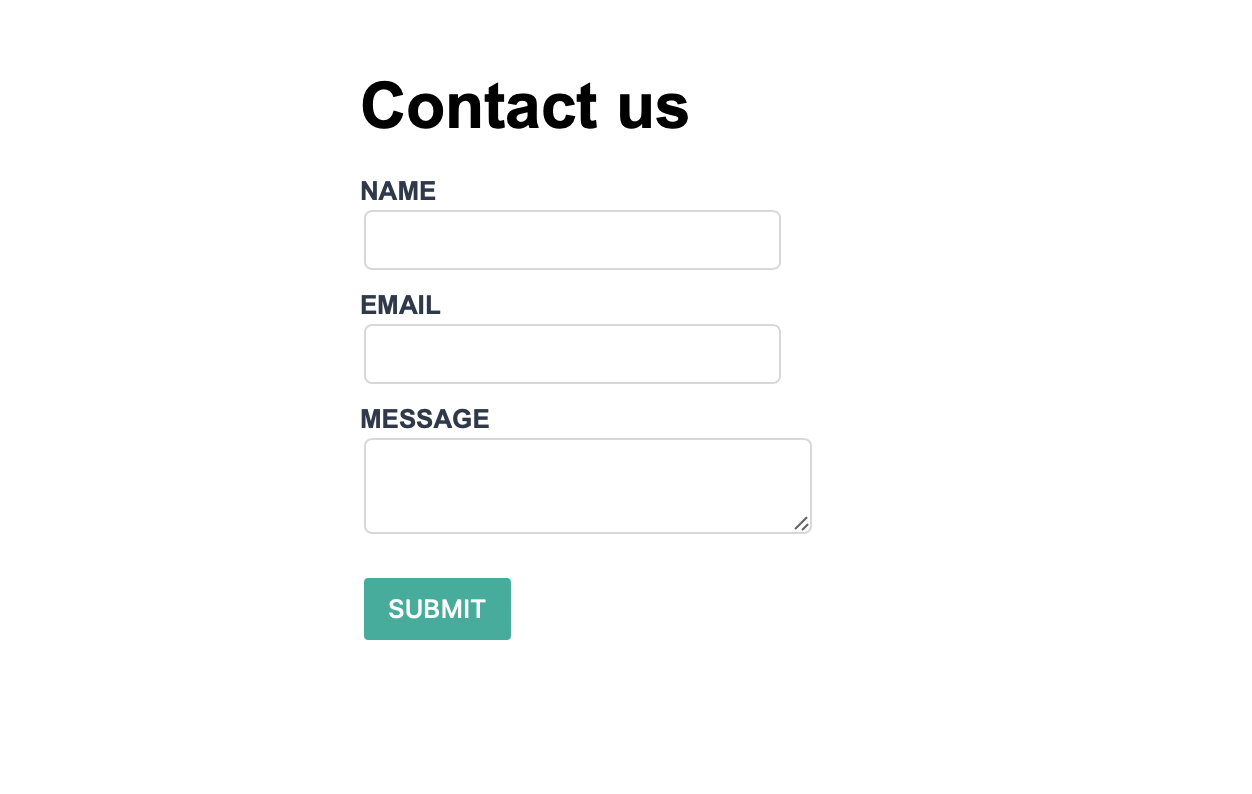
We now have a styled form that looks like this
After filling it out and clicking the submit button, you’ll be redirected to FormBackend’s submission success page and if you navigate to the Submissions page for the form you created in FormBackend you should see the submission you just added.
Handling submissions with JavaScript
The plain form above redirects to FormBackend’s thank-you page on submit. To keep users on the
page and show an inline message, submit it in the background. Update
src/routes/contact/+page.svelte (this uses Svelte 5 runes):
<script>
  let status = $state('idle');

  async function handleSubmit(event) {
    event.preventDefault();
    status = 'submitting';

    const form = event.currentTarget;
    const response = await fetch(form.action, {
      method: 'POST',
      body: new FormData(form),
      headers: { accept: 'application/json' },
    });

    if (response.ok) {
      form.reset();
      status = 'success';
    } else {
      status = 'error';
    }
  }
</script>

<h1>Contact us</h1>

{#if status === 'success'}
  <p>Thanks! Your message has been sent.</p>
{:else}
  <form
    action="https://www.formbackend.com/f/your-form-id"
    method="POST"
    onsubmit={handleSubmit}
  >
    <div>
      <label for="name">Name</label>
      <input type="text" id="name" name="name" required>
    </div>

    <div>
      <label for="email">Email</label>
      <input type="email" id="email" name="email" required>
    </div>

    <div>
      <label for="message">Message</label>
      <textarea id="message" name="message" required></textarea>
    </div>

    <button type="submit" disabled={status === 'submitting'}>
      {status === 'submitting' ? 'Sending…' : 'Submit'}
    </button>
    {#if status === 'error'}
      <p>Something went wrong — please try again.</p>
    {/if}
  </form>
{/if}
A few notes:
event.preventDefault()stops the browser’s default full-page submission. On Svelte 4, useon:submit|preventDefault={handleSubmit}instead and drop the manual call.$stateis the Svelte 5 rune for reactive state. On Svelte 4, a plainlet status = 'idle'is reactive on its own.- The browser’s
FormDatareads every field from the form, and theaccept: application/jsonheader tells FormBackend to return JSON instead of an HTML page.
SvelteKit form actions with validation
The version above runs entirely in the browser. SvelteKit’s own idiom is a form action — a
server function that handles the POST — which lets you validate on the server and keep your
FormBackend URL off the client. Add a Zod schema and create
src/routes/contact/+page.server.js:
import { fail } from '@sveltejs/kit';
import { z } from 'zod';

const schema = z.object({
  name: z.string().min(1, 'Please enter your name'),
  email: z.string().email('Please enter a valid email'),
  message: z.string().min(1, 'Please enter a message'),
});

export const actions = {
  default: async ({ request }) => {
    const formData = await request.formData();
    const result = schema.safeParse(Object.fromEntries(formData));

    if (!result.success) {
      return fail(400, {
        errors: result.error.flatten().fieldErrors,
        values: Object.fromEntries(formData),
      });
    }

    await fetch('https://www.formbackend.com/f/your-form-id', {
      method: 'POST',
      body: formData,
      headers: { accept: 'application/json' },
    });

    return { success: true };
  },
};
Then update src/routes/contact/+page.svelte to post to the action, read its returned form
prop, and progressively enhance the submit with use:enhance:
<script>
  import { enhance } from '$app/forms';

  let { form } = $props();
</script>

<h1>Contact us</h1>

{#if form?.success}
  <p>Thanks! Your message has been sent.</p>
{:else}
  <form method="POST" use:enhance>
    <div>
      <label for="name">Name</label>
      <input type="text" id="name" name="name" value={form?.values?.name ?? ''}
        aria-describedby={form?.errors?.name ? 'name-error' : undefined}>
      {#if form?.errors?.name}<p id="name-error" role="alert">{form.errors.name[0]}</p>{/if}
    </div>

    <div>
      <label for="email">Email</label>
      <input type="email" id="email" name="email" value={form?.values?.email ?? ''}
        aria-describedby={form?.errors?.email ? 'email-error' : undefined}>
      {#if form?.errors?.email}<p id="email-error" role="alert">{form.errors.email[0]}</p>{/if}
    </div>

    <div>
      <label for="message">Message</label>
      <textarea id="message" name="message"
        aria-describedby={form?.errors?.message ? 'message-error' : undefined}
      >{form?.values?.message ?? ''}</textarea>
      {#if form?.errors?.message}<p id="message-error" role="alert">{form.errors.message[0]}</p>{/if}
    </div>

    <button type="submit">Submit</button>
  </form>
{/if}
use:enhance submits without a full page reload while keeping the form working if JavaScript
fails to load. The action validates against your schema and only forwards valid submissions to
FormBackend. For bigger forms, sveltekit-superforms builds on this
exact pattern with far less boilerplate.
What to configure next
Your Svelte form is live. Here’s what you can set up in FormBackend:
- Email notifications: Get an email for every submission, optionally with file attachments
- Auto-reply emails: Send a confirmation to the person who submitted your form
- Spam protection: Built-in spam filtering is always active. Add Cloudflare Turnstile for an extra layer
- Integrations: Forward submissions to Slack, Discord, Google Sheets, or your own API via webhooks
- File uploads: Accept file uploads by adding
enctype="multipart/form-data"to your form
Guides for other frameworks: React, Vue.js, Next.js, Astro, Hugo, and more.
Frequently asked questions
Do I need a backend for a Svelte contact form?
No. With FormBackend your Svelte form posts directly to a hosted endpoint, so there's no server or database to build. FormBackend stores each submission and emails you when one arrives.
How do I submit a Svelte form without a page reload?
Add an onsubmit handler that calls event.preventDefault(), then send the form's data with fetch and the browser's FormData. Set the accept header to application/json so FormBackend returns JSON. A full example is shown above.
Does this work with SvelteKit?
Yes. The example uses SvelteKit's file-based routing (a +page.svelte route). You can also handle the submission with a SvelteKit form action if you'd rather process it on the server.
Does this use Svelte 5 or Svelte 4 syntax?
The JavaScript example uses Svelte 5 with runes ($state) and the onsubmit attribute, which new projects get by default. On Svelte 4, use a let variable and on:submit|preventDefault instead — the fetch logic is identical.
How do I validate a SvelteKit form?
Use a SvelteKit form action in +page.server.js. Parse the submitted FormData with a Zod schema's safeParse and return fail(400, { errors }) when it doesn't pass, so the messages render next to each field. The action only forwards valid submissions to FormBackend, and because it runs on the server your endpoint URL stays off the client. A full example is shown above. For larger forms, sveltekit-superforms builds on this with less boilerplate.
How do I add spam protection to a Svelte form?
FormBackend filters spam automatically. For stronger protection add Cloudflare Turnstile, hCaptcha, or reCAPTCHA, or include a hidden honeypot field. See the spam filtering guides for setup.
Keep reading
How to add a form to your Gatsby site
Add a contact form to your Gatsby site with no backend. A complete React example that submits with fetch, shows an inline success message, and reports errors accessibly.
How to create a form in Astro (with Astro Actions)
Add a contact form to your Astro site with no backend. Copy-paste examples for a plain HTML form, a JavaScript submission with an inline thank-you, and the modern Astro Actions approach with server-side Zod validation.
How to create a React form (with validation)
Build a React contact form with no backend. Copy-paste examples for a plain HTML form, a fetch submission with success and error states, validation with React Hook Form and Zod, and the React 19 form action with useActionState.
Add a form backend to your site in minutes
Connect any HTML form to FormBackend and start collecting submissions — no backend code required.
Start free