
How to add a form to your Webflow site
Connect a Webflow form to FormBackend so submissions land in your inbox and dashboard — no submission limits. Works on both hosted and exported Webflow sites.
Webflow is a powerful drag-and-drop editor for building responsive websites.
Exported Webflow sites can’t use Webflow’s built-in form handling, and hosted sites limit how many submissions you can collect. In this guide we’ll connect a Webflow form to FormBackend so you can receive submissions — with no limits — on either a hosted or an exported Webflow site.
Add a form to FormBackend
Log in to your FormBackend account and visit the forms index page. Go ahead and create a new form and give it a name you can remember it by. A form is basically just a blank slate for the form you add to your website. You can add as many fields as you’d like to the form on your website and the data that is submitted will show up for the form on FormBackend.
After your form has been created, you’ll see the “Submissions” page which is where new submissions will appear. If you navigate to the “Set up” page you can see the unique URL for your form. We’ll copy that!
Add a new form to Webflow
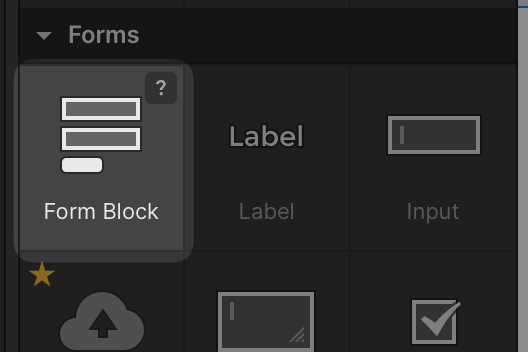
Go to the page you want to add a form to in Webflow and add a new “Form Block”
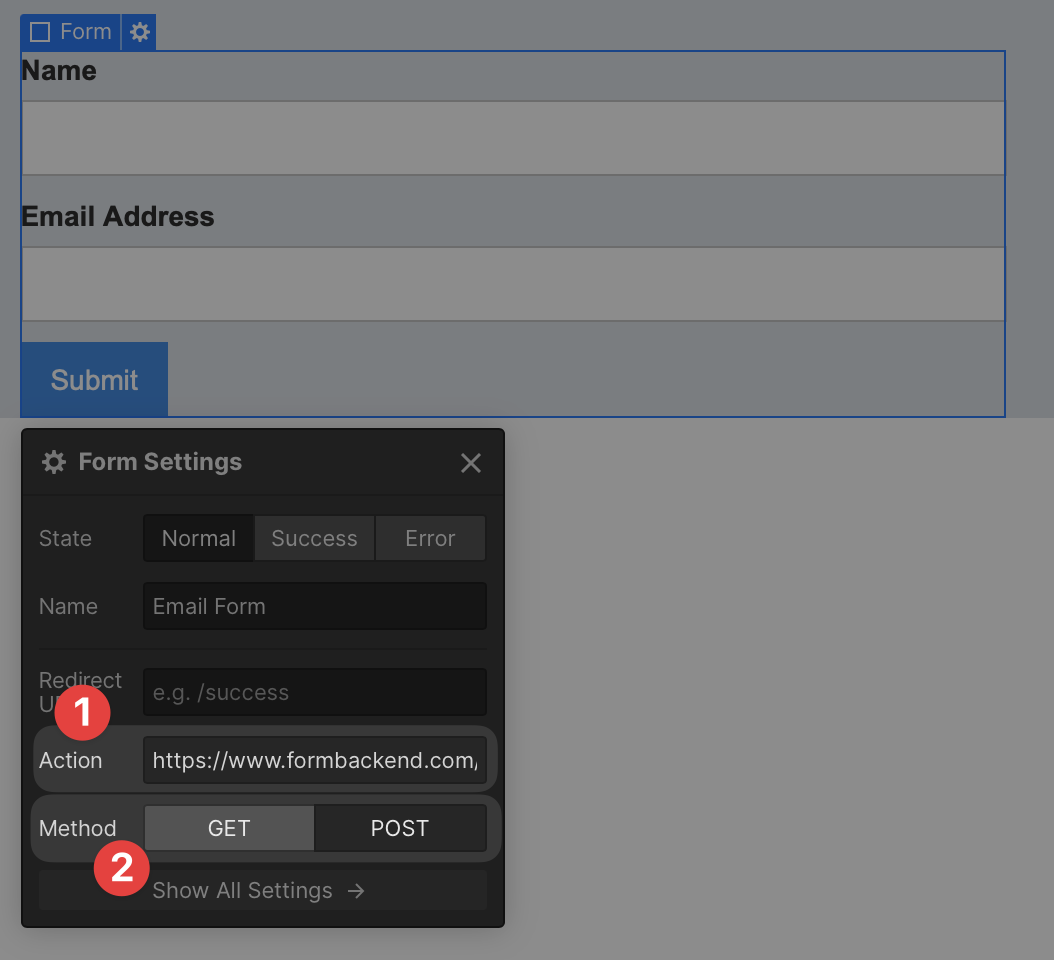
Select the newly added “Form Block” in the Webflow editor and add your unique FormBackend form url (the https://www.formbackend.com/f/{your-identifier} url you copied when creating your form) to the Action field and set the Method to “POST”
Now when you submit the form on your webflow site, the submission will show up in FormBackend.
Tips for Webflow forms
Every form field you add in Webflow’s designer gets a name attribute, which is how FormBackend identifies each field. Make sure each field has a unique, descriptive name (e.g. “name”, “email”, “company”). You can set this in the field settings panel in Webflow.
If you want to accept file uploads through your Webflow form, you can add a file input field and set the form’s encoding to multipart/form-data in the custom attributes.
Set up notifications and integrations
Now that your Webflow form is sending submissions to FormBackend, here’s what to configure:
- Email notifications: Get notified by email every time someone submits, with optional file attachments
- Auto-reply emails: Automatically send a confirmation to the person who submitted your form
- Spam filtering: Every submission is checked for spam automatically. Add Cloudflare Turnstile or hCaptcha for extra protection
- Integrations: Forward submissions to Slack, Google Sheets, Notion, Discord, or any URL via webhooks
- Custom redirect: Send users to a specific page on your Webflow site after they submit
- Customize the thank-you page: Change the default success message users see
Looking for a code-based approach? See our guides for React, Next.js, HTML, WordPress, and more.
Frequently asked questions
Does this work on hosted Webflow sites or only exported ones?
Both. Set the Form Block's Action field to your FormBackend URL and its Method to POST in the form settings. That works on a site hosted on Webflow as well as on a static export.
Why send Webflow form submissions to FormBackend?
Exported Webflow sites can't use Webflow's own form handling at all, and hosted sites cap form submissions by plan. Pointing the form at FormBackend removes those limits and gives you email notifications, a submission dashboard, spam filtering, and integrations.
Will I lose Webflow's built-in form styling?
No. You're only changing where the form submits (its Action and Method). The form's design, layout, and interactions in the Webflow Designer stay exactly the same.
How do I add spam protection to a Webflow form?
FormBackend filters spam automatically. For more protection add Cloudflare Turnstile, hCaptcha, or reCAPTCHA, or include a hidden honeypot field. See the spam filtering guides.
Can I accept file uploads through a Webflow form?
Yes. Add a file input field and set the form's encoding to multipart/form-data using a custom attribute, then FormBackend will store the uploaded files with the submission.
Keep reading
How to add a form to your Gatsby site
Add a contact form to your Gatsby site with no backend. A complete React example that submits with fetch, shows an inline success message, and reports errors accessibly.
How to create a form in Astro (with Astro Actions)
Add a contact form to your Astro site with no backend. Copy-paste examples for a plain HTML form, a JavaScript submission with an inline thank-you, and the modern Astro Actions approach with server-side Zod validation.
How to create a React form (with validation)
Build a React contact form with no backend. Copy-paste examples for a plain HTML form, a fetch submission with success and error states, validation with React Hook Form and Zod, and the React 19 form action with useActionState.
Add a form backend to your site in minutes
Connect any HTML form to FormBackend and start collecting submissions — no backend code required.
Start free